Salesforce Marketing Cloud
Sync customer data to Salesforce Marketing Cloud (SFMC) for email, SMS, and journey-based marketing campaigns. SignalSmith pushes data to Data Extensions, fires Journey Builder entry events, triggers transactional messages, and manages subscriber and SMS audiences — all through SFMC’s REST and SOAP APIs.
Prerequisites
- A Salesforce Marketing Cloud account with an active subscription (Enterprise edition or higher)
- Administrator access to create Installed Packages in SFMC
- API access enabled for your SFMC tenant
- The Business Unit Member ID (MID) if targeting a child Business Unit
- For SOAP API usage: the SOAP Base URI from your Installed Package
Permissions
Your Installed Package must have the correct API Integration permission scopes for the object types you plan to sync. The table below lists the minimum required scopes per object type.
| Object Type | SFMC Permission Scope | Access Level |
|---|---|---|
| Data Extension | Email > Subscribers > Data Extensions | Read, Write |
| Contact | Contacts > List and Subscribers | Read, Write |
| Journey Entry | Journeys > Journeys | Read, Execute |
| Triggered Send | Email > Interactions > Triggered Sends | Read, Send |
| Subscriber List | Email > Subscribers > Subscribers | Read, Write |
| SMS Audience | Channels > SMS | Read, Write |
When creating the API Integration component in your Installed Package, check these scope categories:
- Data Extensions: Read, Write
- List and Subscribers: Read, Write
- Journeys: Read, Execute
- Triggered Sends: Read, Send
- SMS: Read, Write (if using SMS Audiences)
- Automations: Read, Write, Execute (if using SOAP API for Data Extensions)
Tip: Grant all permissions listed above to avoid needing to reconfigure the package later when adding new object types.
Authentication
SFMC uses OAuth 2.0 Client Credentials authentication via an Installed Package. Unlike Salesforce CRM, there is no user-facing OAuth consent screen — you configure a server-to-server integration with a Client ID and Client Secret.
- Log in to Salesforce Marketing Cloud
- Click the gear icon (top-right) and select Setup
- In the left sidebar, expand Platform Tools > Apps and click Installed Packages
- Click New to create a new package — name it something descriptive like “SignalSmith Integration”
- Click Add Component, select API Integration, then choose Server-to-Server
- On the scope selection screen, check the permissions listed in the Permissions section above
- Click Save — SFMC generates a Client ID and Client Secret
- On the package summary screen, note the three URIs: Authentication Base URI, REST Base URI, and SOAP Base URI
- Extract your subdomain from any of the URIs — it is the part before
.auth.marketingcloudapis.com(e.g.,mc563885gzs27c8lz51l91t3x558) - If targeting a child Business Unit, navigate to Setup > Company Settings > Business Units and note the MID (Member ID)
- In SignalSmith, create a new SFMC destination and paste the Client ID, Client Secret, subdomain, and URIs
Note: All three URIs can be derived from your subdomain. If you provide the subdomain, SignalSmith constructs the Authentication, REST, and SOAP URIs automatically using the pattern
https://{subdomain}.{service}.marketingcloudapis.com.
Configuration
| Field | Type | Required | Description |
|---|---|---|---|
| Subdomain | Text | Yes | Your SFMC tenant-specific subdomain (e.g., mc563885gzs27c8lz51l91t3x558). Found in your Installed Package details. |
| Authentication Base URI | Text | Yes | The OAuth authentication endpoint (e.g., https://{subdomain}.auth.marketingcloudapis.com) |
| REST Base URI | Text | Yes | The REST API endpoint (e.g., https://{subdomain}.rest.marketingcloudapis.com) |
| SOAP Base URI | Text | Yes | The SOAP API endpoint (e.g., https://{subdomain}.soap.marketingcloudapis.com) |
| Business Unit | Text | No | Member ID (MID) of the target Business Unit. Leave blank for the parent Business Unit. |
Target Settings
| Field | Type | Required | Description |
|---|---|---|---|
| Object Type | Select | Yes | The type of SFMC object to sync data to: Data Extension, Contact, Journey Entry, Triggered Send, Subscriber List, or SMS Audience |
| Data Extension Key | Text | Conditional | External key of the target Data Extension (required for Data Extension) |
| Data Extension Name | Text | No | Human-readable name for the Data Extension. If the Data Extension does not exist and this name is provided, SignalSmith will attempt to create it automatically with columns derived from your field mapping. |
| Journey Definition Key | Text | Conditional | The Journey Builder definition key (required for Journey Entry) |
| Journey Version | Number | No | Journey version number (default: 1) |
| Triggered Send Key | Text | Conditional | External key of the triggered send definition (required for Triggered Send) |
| List ID | Text | Conditional | Subscriber list ID (required for Subscriber List) |
| SMS Keyword | Text | Conditional | SMS keyword (required for SMS Audience) |
| SMS Short Code | Text | Conditional | SMS short code (required for SMS Audience) |
| Use SOAP API | Toggle | No | Enable SOAP API for higher batch limits (2,500 vs 200 rows per call). Recommended for large Data Extensions. See REST vs SOAP API. |
Supported Operations
Sync Modes
| Mode | Supported |
|---|---|
| Upsert | Yes |
| Insert | Yes |
| Update | Yes |
| Mirror | — |
Audience Sync Modes
| Mode | Supported |
|---|---|
| Add | Yes |
| Remove | Yes |
| Mirror | Yes |
| Upsert | Yes |
Features
- Field Mapping: Yes
- Schema Introspection: Yes — Data Extensions only. SignalSmith reads column metadata from the SFMC Data Extension API.
- Auto-Creation: Yes — Data Extensions only. If a Data Extension does not exist and a name is provided, SignalSmith creates it automatically via the SOAP API.
Required Mapping Fields
Required fields depend on the selected Object Type. These fields serve as the primary identifier (upsert key) for each record.
| Object Type | Required Fields | Purpose |
|---|---|---|
| Data Extension | ContactKey | Primary key for DE row upsert |
| Contact | ContactKey | Unique contact identifier in SFMC |
| Journey Entry | ContactKey | Identifies the contact entering the journey |
| Triggered Send | EmailAddress | Recipient address for the message |
| Subscriber List | SubscriberKey | Unique subscriber identifier |
| SMS Audience | MobileNumber | Mobile phone number for SMS delivery |
Default Destination Fields
Data Extension
ContactKey, EmailAddress, FirstName, LastName, Phone, Company, Status
Journey Entry
ContactKey, EmailAddress, Data (JSON payload)
Triggered Send
EmailAddress, SubscriberKey, Subject
Contact
ContactKey, EmailAddress, FirstName, LastName, Phone
Subscriber List
SubscriberKey, EmailAddress, Status
SMS Audience
MobileNumber, ContactKey, OptInDate
Choosing the Right Object Type
SFMC has several object types, each suited to different use cases. If you are unsure where to start, Data Extensions are the most versatile option.
Data Extensions
Use when you need to store tabular customer data in SFMC for segmentation, personalization, or as lookup tables. Data Extensions are SFMC’s primary storage mechanism and the most common sync target. Typical use cases include customer profiles, purchase history, product recommendations, and audience segments for Email Studio campaigns.
Contacts
Use when you need to create or update records in SFMC’s unified Contact model. The Contact model is SFMC’s identity layer that links a person across channels (email, SMS, push). Typical use cases include enriching contact records with warehouse attributes and enabling Contact Builder-based audience segmentation.
Journey Entry
Use when you need to inject contacts into a running Journey Builder journey. Each synced row fires one entry event. Typical use cases include triggering onboarding flows, re-engagement campaigns, and event-driven journeys based on warehouse signals. The journey must be published with an API Event entry source configured.
Triggered Sends
Use when you need to send individual transactional messages — one message per row. Typical use cases include order confirmations, password resets, shipping notifications, and appointment reminders. The Triggered Send Definition must be pre-configured and active in Email Studio.
Subscriber Lists
Use when you need to manage classic subscriber list membership. In modern SFMC, subscriber lists are backed by Data Extensions, so the sync uses the same underlying mechanism. Typical use cases include legacy list-based email sends and Email Studio audience management.
SMS Audiences
Use when you need to manage mobile subscriber contacts for MobileConnect SMS campaigns. Each row adds or updates a mobile contact with the specified keyword and short code. A keyword and short code must be configured in MobileConnect before syncing.
REST vs SOAP API
The Use SOAP API toggle applies to Data Extension syncs only. Both APIs produce the same result — the difference is batch size and throughput.
| Factor | REST API | SOAP API |
|---|---|---|
| Batch size | 200 rows per call | 2,500 rows per call |
| Throughput | Lower (more API calls for the same data) | ~12x higher (fewer calls) |
| Supported modes | Upsert | Upsert, Insert, Update |
| Error granularity | Per-row status in JSON response | Per-object status in XML response |
| Setup complexity | None (default) | Enable the Use SOAP API toggle |
Guidance:
- For Data Extensions with fewer than 10,000 rows, the REST API is sufficient
- For larger syncs (10,000+ rows), enable the SOAP API to reduce API calls by approximately 12x
- The SOAP API also supports explicit Insert and Update modes, while the REST API only supports Upsert
Business Units
SFMC accounts can have a parent Business Unit and multiple child Business Units. Each Business Unit has a unique Member ID (MID).
- If you leave the Business Unit field blank, SignalSmith connects to the parent Business Unit
- To target a child Business Unit, enter its MID in the configuration
- Data Extensions, subscriber lists, and other objects are scoped to a Business Unit — a sync targeting the parent BU cannot write to a child BU’s Data Extensions, and vice versa
- Find MIDs in SFMC under Setup > Company Settings > Business Units
- The Installed Package must have access to the target Business Unit. Packages created at the Enterprise level have access to all child BUs by default.
How It Works
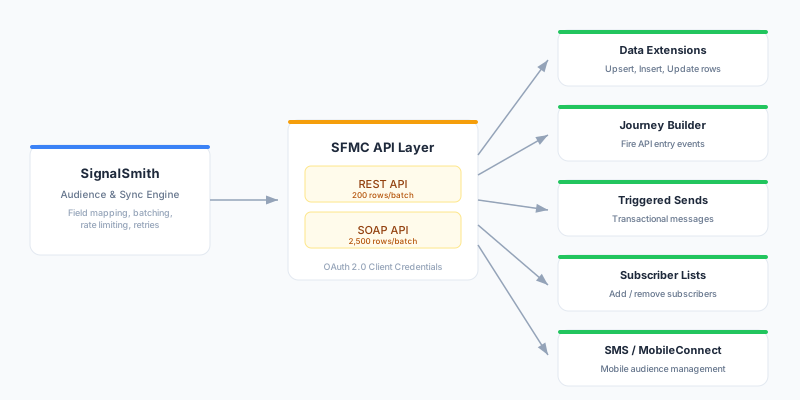
Data Extensions
Data Extensions are the primary storage mechanism in SFMC. SignalSmith reads rows from your model query, applies field mapping, and splits each row into a keys object (containing the ContactKey) and a values object (all other fields). Rows are batched into groups of 200 (REST) or 2,500 (SOAP) and sent to the SFMC API. The response includes per-row status codes — successful rows return OK, and failed rows return error details that are logged individually.
When a Data Extension does not yet exist in SFMC and you provide a Data Extension Name, SignalSmith automatically creates it via the SOAP API with columns derived from your field mapping. All auto-created columns default to Text(200) with ContactKey as the primary key. If you need specific column types (Number, Date, Boolean), create the Data Extension manually in SFMC before syncing.
Journey Entry
Each synced row fires one entry event to the Journey Builder API (/interaction/v1/events). The payload includes the ContactKey, EventDefinitionKey, and a Data object containing all other mapped fields as key-value pairs. Events are sent individually (not batched) because SFMC’s Journey Entry API does not support batch submission. The journey must be in Active status with an API Event entry source — events targeting paused or stopped journeys are silently dropped.
Triggered Sends
Each synced row triggers one transactional message via the Triggered Send API (/messaging/v1/messageDefinitionSends/key:{key}/send). The payload includes the recipient’s email address, subscriber key, and any additional subscriber attributes for personalization. If SubscriberKey is not explicitly mapped, it defaults to the EmailAddress value. Messages are sent one at a time — this object type is designed for transactional, not bulk, messaging.
Contacts
Contact records are sent in batches of 100 to the Contacts API (/contacts/v1/contacts). Each contact is identified by ContactKey. The API returns per-contact status: OK for updates, Created for new contacts, or an error message for failures. Use this object type to enrich SFMC’s contact identity layer with attributes from your warehouse.
Subscriber Lists
Subscriber list management uses the same underlying mechanism as Data Extensions — in modern SFMC, lists are backed by Data Extensions. Rows are batched and sent using the rowset API with SubscriberKey (or ContactKey) as the primary identifier. Use Add/Remove audience sync modes to manage list membership, or Upsert to add-and-update subscriber attributes.
SMS Audiences
Each row creates or updates an SMS contact via the MobileConnect API (/sms/v1/contacts). The payload includes the mobile number, keyword, short code, and optional ContactKey. Rows are sent individually. The keyword and short code must be registered in MobileConnect before syncing — unrecognized keywords will be rejected.
Rate Limits
| Object Type | API | Batch Size | Rate Handling |
|---|---|---|---|
| Data Extension | REST | 200 rows/call | Automatic retry after 10s on HTTP 429 |
| Data Extension | SOAP | 2,500 rows/call | Automatic retry after 10s on HTTP 429 |
| Contact | REST | 100 rows/call | Automatic retry after 10s on HTTP 429 |
| Journey Entry | REST | 1 event/call | No batching |
| Triggered Send | REST | 1 message/call | No batching |
| Subscriber List | REST | 200 rows/call | Automatic retry after 10s on HTTP 429 |
| SMS Audience | REST | 1 contact/call | No batching |
SFMC enforces tenant-level API rate limits. SignalSmith automatically pauses for 10 seconds when it receives a 429 (Too Many Requests) response, then retries the batch once. If you consistently hit rate limits, consider enabling the SOAP API for Data Extensions (12x fewer calls), reducing sync frequency, or contacting Salesforce to increase your API quota.
Best Practices
ContactKey strategy
Use a stable, globally unique identifier as your ContactKey — such as a hashed email address or a warehouse-generated customer ID. ContactKey is the primary identity key across all of SFMC. Using an unstable or duplicate key causes duplicate contact records that are difficult to clean up.
Data Extension schema design
Create your Data Extension in SFMC with the correct column types (Text, Number, Date, Boolean) before syncing if you need type enforcement. Column type mismatches (e.g., sending text to a Number column) cause row-level failures. Use SignalSmith’s schema introspection to verify field names and types after setup.
Volume considerations
For syncs with more than 10,000 rows, enable the Use SOAP API toggle for ~12x better throughput. For very large syncs (100,000+ rows), schedule during off-peak hours to reduce the risk of rate limiting. Monitor sync run durations in SignalSmith’s Insights tab.
Scheduling recommendations
For Data Extensions and Contacts, schedule syncs based on how frequently your warehouse data changes — daily is typical for profile data. For Journey Entry and Triggered Sends, shorter intervals (hourly or more frequent) make sense for time-sensitive workflows like abandoned cart triggers or transactional messages.
Audience syncs
When using audience syncs to Data Extensions, use Mirror mode to keep the Data Extension in exact sync with your audience. Consider adding a timestamp column to track when each row was last updated — this is useful for SFMC automations that filter on recency.
Troubleshooting
Authentication failed
Verify your Client ID and Client Secret in SFMC under Setup > Apps > Installed Packages. Ensure the Server-to-Server integration component is active and has the required permissions. If the token was recently rotated, update the credentials in SignalSmith.
Data Extension not found
Ensure the Data Extension Key matches the external key in SFMC (not the display name). You can find the external key in Email Studio > Data Extensions > Properties. If you want SignalSmith to create the Data Extension automatically, provide a Data Extension Name in the target settings.
Journey not firing
Verify the journey is in Active status in Journey Builder. The Event Definition Key must match exactly — find it in the journey’s API Event entry source configuration. Events targeting paused, stopped, or draft journeys are silently dropped by SFMC.
Insufficient permissions
The Installed Package must have the correct scope for the selected object type. Review the permissions in the Server-to-Server component settings under Setup > Apps > Installed Packages. See the Permissions section for the exact scopes needed per object type.
SOAP API error: “Invalid Customer Key”
The Data Extension external key does not match any Data Extension in the target Business Unit. Verify the key in Email Studio > Data Extensions and ensure you are targeting the correct Business Unit. Remember that Data Extensions are scoped to a Business Unit.
Rate limiting: HTTP 429
SignalSmith automatically retries after a 10-second pause when receiving a 429 response. If you consistently hit rate limits, switch to the SOAP API for Data Extensions (12x fewer API calls), reduce sync frequency, or contact Salesforce to increase your tenant’s API quota.
Business Unit access denied
The Installed Package may not have access to the target Business Unit. In SFMC Setup > Apps > Installed Packages, verify that the package is scoped to the Enterprise level (parent) or is explicitly associated with the target child Business Unit.
Data Extension column type mismatch
If a mapped field value does not match the Data Extension column type (e.g., sending text to a Number column), the row fails with a type conversion error. Verify column types in Email Studio > Data Extensions > [Your DE] > Fields and adjust your field mapping or model query to cast values appropriately.
Triggered Send definition inactive
The Triggered Send Definition must be in Active status. Messages sent to an inactive definition are silently dropped. Check the status in Email Studio > Interactions > Triggered Sends and activate the definition if needed.
Contact already exists error
The Contacts API returns this error when using Insert mode and a contact with the same ContactKey already exists. Switch to Upsert sync mode to update existing contacts instead of failing on duplicates.
SMS keyword not recognized
The keyword specified in the SMS Audience configuration must be registered in MobileConnect. Verify in MobileConnect > Keywords that the keyword exists and is associated with the correct short code.
Schema introspection returns no fields
Schema introspection for Data Extensions requires at least one row in the Data Extension. If the DE is empty, introspection may return no columns. Add a test row to the Data Extension or configure field mappings manually using the Add row button.