ERD Visualization
The Entity-Relationship Diagram (ERD) viewer provides an interactive, visual representation of your entire data schema. It displays all entity types and their relationships as a graph, making it easy to understand the structure of your data model at a glance.
Accessing the ERD Viewer
- Navigate to Schema in the left sidebar
- Click the ERD View tab (or toggle between List View and ERD View)
The ERD viewer opens in a full-width canvas showing all defined entity types and their relationships.
Understanding the Diagram
Entity Type Nodes
Each entity type appears as a card (node) on the canvas. The card displays:
- Entity name — The name of the entity type (e.g., “User”, “Account”, “Order”) shown as the header
- Attributes — Listed below the header with their data types
- Primary key — Marked with a key icon next to the attribute name
- Identifier attributes — Highlighted to distinguish them from regular attributes
Example node:
| User | |
|---|---|
| id (PK) | string |
| email (identifier) | string |
| first_name | string |
| last_name | string |
| phone | string |
| created_at | date |
| ltv | number |
Relationship Lines
Relationships appear as lines connecting entity type nodes. Each line shows:
- Direction — An arrow indicating the direction of the relationship (from source to target)
- Cardinality — Symbols at each end of the line indicating the relationship type:
1— One (at the “one” side of one-to-one or one-to-many)Nor*— Many (at the “many” side)
- Label — The relationship name displayed along the line (e.g., “belongs to”, “has many”)
User ───── belongs to (N:1) ─────▸ Account
Cardinality Notation
The ERD uses crow’s foot notation to indicate cardinality:
| Symbol | Meaning |
|---|---|
────── (single line) | One |
──<── (fork) | Many |
──○── (circle) | Zero (optional) |
| `── | ──` (bar) |
For example:
──|──<──means “one-to-many (required)” — one Account has many Users──○──<──means “zero-to-many (optional)” — a User may have zero or more Orders
Interacting with the ERD
Navigation
- Pan — Click and drag on the canvas background to move around the diagram
- Zoom — Use the scroll wheel or pinch gesture to zoom in and out
- Fit to screen — Click the “Fit” button to zoom the diagram so all entities are visible
- Reset zoom — Double-click the canvas background to reset to the default zoom level
Selecting Entities
- Click on an entity node to select it and highlight all its relationships
- Double-click on an entity node to open its detail panel for editing
- Selected entities and their direct relationships are highlighted; other entities are dimmed
Moving Entities
- Drag an entity node to reposition it on the canvas
- The layout is saved per workspace, so your arrangement persists between sessions
- Other nodes and relationship lines adjust dynamically as you move entities
Viewing Relationship Details
- Hover over a relationship line to see a tooltip with:
- Relationship name
- Source and target entity types
- Join keys
- Cardinality type
- Click on a relationship line to select it and view full details in the side panel
Layout Options
The ERD viewer supports multiple layout algorithms to arrange entity nodes:
Auto Layout
Automatically positions entities to minimize line crossings and create a clean, readable diagram. Best for:
- Initial viewing of a new or modified schema
- Schemas with many entity types
Hierarchical Layout
Arranges entities in a top-down hierarchy based on relationship direction. Parent entities (those on the “one” side) appear at the top, and child entities (on the “many” side) appear below. Best for:
- Schemas with clear hierarchical structures (Account > User > Order)
- Understanding ownership and containment relationships
Manual Layout
Position entities manually by dragging them. Best for:
- Custom arrangements that match your team’s mental model
- Presentation-ready diagrams
Filtering and Searching
Search
Use the search bar at the top of the ERD to find specific entity types. Matching entities are highlighted on the canvas, and the view pans to center on the results.
Filtering by Entity Type
For large schemas, you can filter which entity types are displayed:
- Click the Filter button in the toolbar
- Check/uncheck entity types to show or hide them
- The ERD updates to show only the selected entities and their mutual relationships
This is useful for focusing on a specific part of your data model (e.g., “show me only User, Account, and Subscription entities”).
Exporting the Diagram
The ERD can be exported for documentation and sharing:
- PNG — Export as a high-resolution image
- SVG — Export as a scalable vector graphic (ideal for documentation)
Click the Export button in the toolbar and select the desired format.
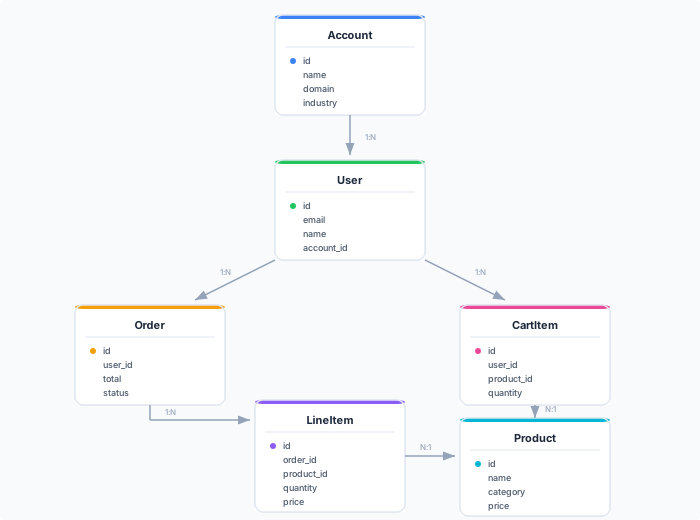
Example ERD
Here’s what a typical e-commerce schema looks like in the ERD viewer:
Best Practices
- Use auto layout first — Start with automatic positioning, then manually adjust entities that need to be closer together or further apart
- Group related entities — Position entities that are frequently queried together near each other
- Export for documentation — Use SVG export for wiki pages and architectural documentation
- Review after changes — After adding or modifying entity types or relationships, open the ERD to verify the schema looks correct
- Use filtering for large schemas — If you have 10+ entity types, use filtering to focus on the access filter relevant to your current task
Next Steps
- Create entity types to add more nodes to the ERD
- Define relationships to connect entity types
- Build audiences that traverse relationships